Reports

Introduction
Reports provide a structured overview of the users’ input, so that you can figure out quickly what the option distribution is. Reports can be generated for all dropdown lists, radio buttons, checkboxes and Likert Scales.

Form Reports

View reports

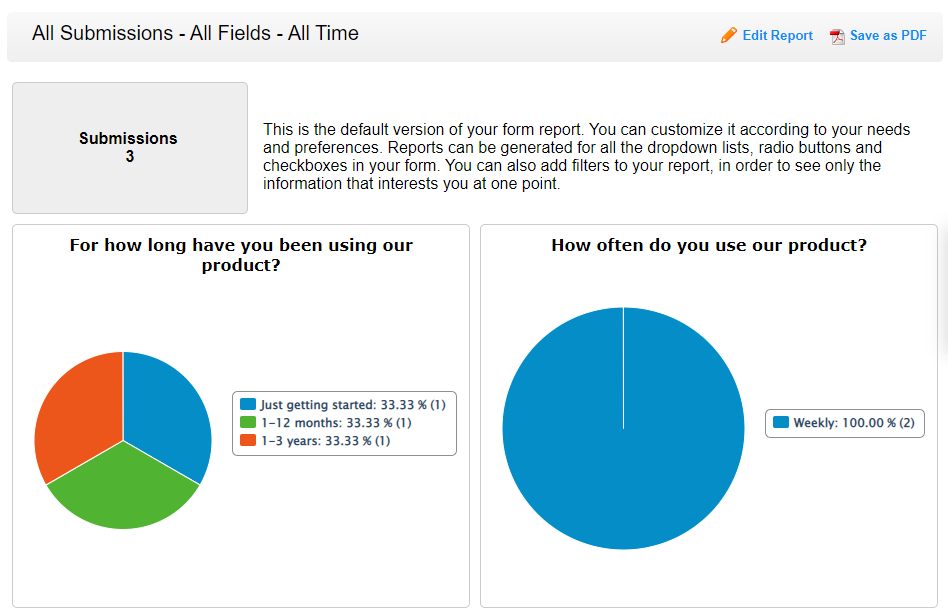
Reports are rendered through charts. Each field is shown in a separate chart. Options have different associated colors and are measured percentually and by number of submissions.When you first access the Reports section for a form, you see the default report, that contains all form fields, shown in pie charts, in the order that they appear in your form.

Customize reports

Add New Report

To start creating a custom report, click on the Edit Report link at the top-right corner of the page and then on Create New Report. You can either start from scratch or duplicate the default report. Select one of the tabs New Report or Duplicate Report and name your report. Click OK. Creating a new report means that you’ll be adding, one by one, the form fields that you want to show in your report, with your preferred chart type.

 
The image below shows a new report page. Similarly to the Add/Edit Field panel in your Form Editor, the panel on the left side of this page allows you to Add Widgets or Edit Widgets. Read more about widgets.

New Report

The menu in the top bar allows you to edit or delete a report and also to set it as the default report.

Reports Menu

The bar at the bottom of the page contains the Update Report link. Reports are not updated automatically. Therefore, you need to click on this link in order to have new submission information included in the report.

Widgets
Each widget has a configuration panel that allows you to customize everything from what field will be described in that widget to the widget height, width, border, title, label positioning or text alignment. The four available widgets also have specific customization options.

Edit Widget

Chart. This widget generates a chart for one of the form fields. It can be: a pie chart, vertical bars, horizontal bars or line (Chart Type option). Select the field that will be described by this chart in the dropdown list Control.

Data Table. This widget inserts a table with the form submissions received.

Number. The number widget can display the submission count for your form (DataForm Stats, Select Field TypeSubmissions) or information from a Number field in your form (DataField, Select Numeric Field → your preferred field). In the latter case, you can choose to display the total count, the minimum, maximum, avarage or several other possibilities. This widget allows for selecting the text and background colors.

Text. Using the text widget, you can insert text or other elements, in a What You See Is What You Get editor. Click on Edit HTML Block and insert the content.

You can adjust widget positioning the same way you do with form fields in the Form Editor: drag & drop them in the main view. To delete or duplicate a widget, click on it and use the two controls in the top-right corner.

Filter reports

Filter Reports

Reports filters allow you to view only the information that is of interest to you at a certain moment. Click Add Filter to establish the criteria based on which answers will be or not included in your report.

To remove a filter, tick its checkbox and click Delete selected.

Share reports

Reports can be made public by pressing the Publish reports button and selecting Yes. The platform will generate a webpage with your submission results. You can share its URL with all intereseted parties.

How to publish reports?
If you want form reports to be available to the public, go to your Reports section and click on Publish reports. Then share the link that is generated.

What if I don’t want my reports do be public anymore?
If you don’t want your reports to be available to others anymore, you just have to press the Publish reports button, select No and Save.

I received new form submissions, but my reports are not updated. Why?
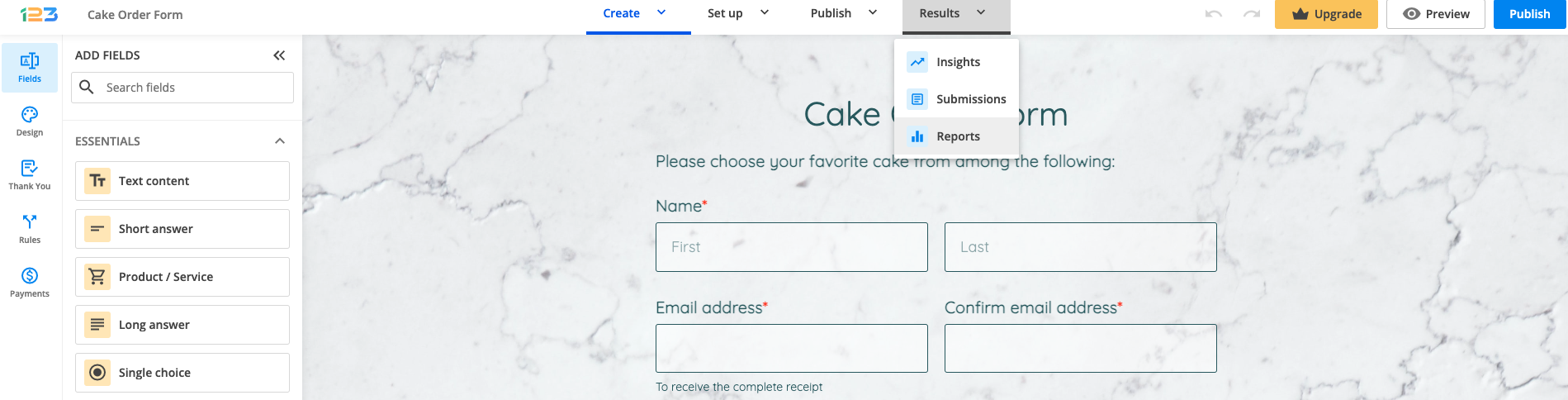
Reports are not updated automatically. To update reports, click on Edit Report in the top menu and then on Update Report at the bottom of the page. Access/refresh the report and you’ll see its current status.

How to include form submissions in my report?
You can insert a table containing form submissions in your report by clicking on Add WidgetData Table.

Data Table Widget

Leave a Reply

Your email address will not be published. Required fields are marked *

*