
Web forms with autoresponders generator
Create web forms with custom autoresponders that help build a professional relationship with your customers.
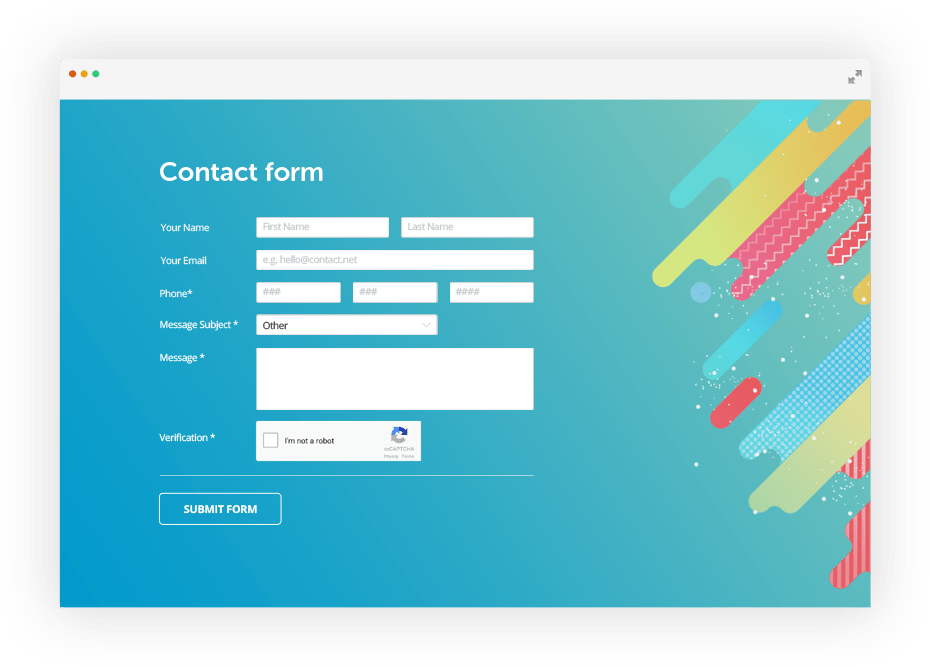
With 123FormBuilder you can create web forms with email autoresponders without having any technical knowledge at all.
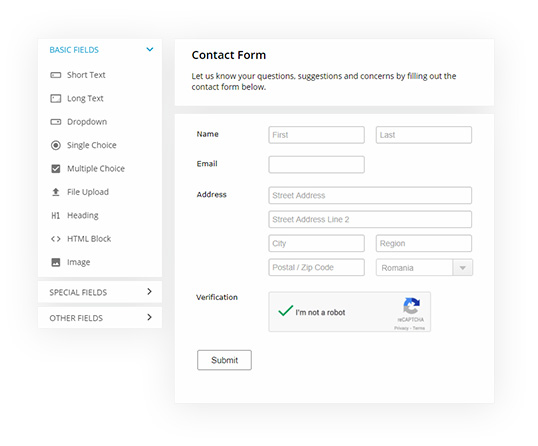
Benefits of autoresponder web forms:
- You don’t need any technical experience
- It doesn’t require any server side script installation
- You can send custom autoresponders based on submitted content
- You can manage the autoresponder template from your user control pane
- Copy and paste the final contact form code on your website

Notify that customer that you are missing
You can make a different autoresponder for every occasion: out of the office autoresponder, on vacation autoresponder etc. A customer who fills your contact form expects a fast answer.
Out of office?
What happens when you are on vacation or out of the office for the rest of the day? The easiest way to notify that customer that you are missing is to send him a message and tell him that you will answer when you’re back. But how to do that automatically, because you’re not there to send that email? The answer is simple: use an autoresponder message.
Code-free form builder
An autoresponder is an automatic reply that will include a message from you, such as: “I’m not at the office right now, I will get back to you tomorrow morning”. Some people also include phone details so that urgent messages can still reach them.
No programming skills needed
Some servers allow you to install autoresponder scripts. But they require a certain degree of technical knowledge. If you also have a self-designed email form, you can search and add an autoresponder script (search for some freebies that will do the trick). However, you have to know PHP at least at basic level. A simpler solution would be to use our web forms.

Ready to use templates
Select the type of form you need for your business below or browse through our complete form templates collection.
T-shirt Order Form

Contact Form

Work Order Request Form
