Introduction
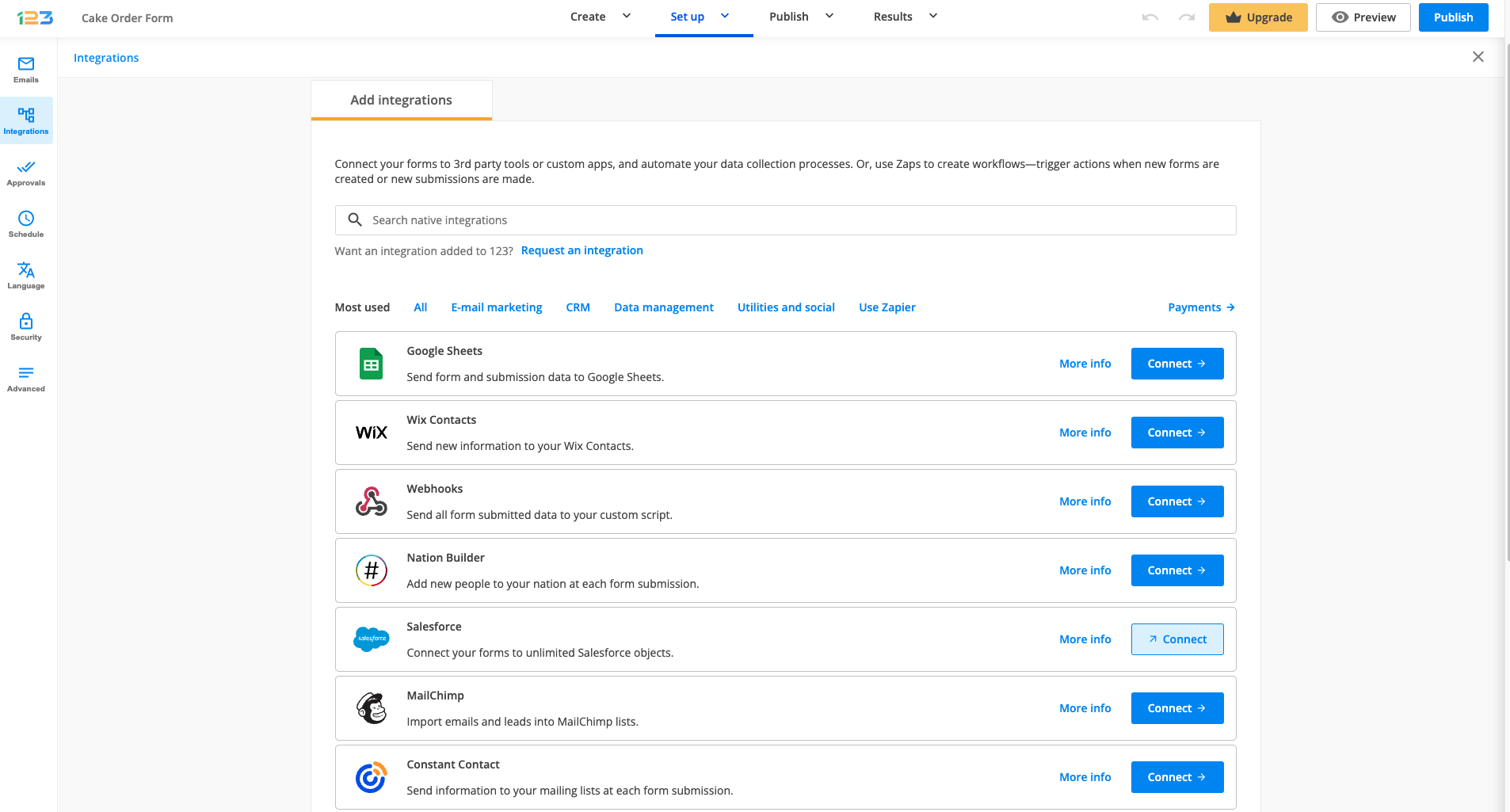
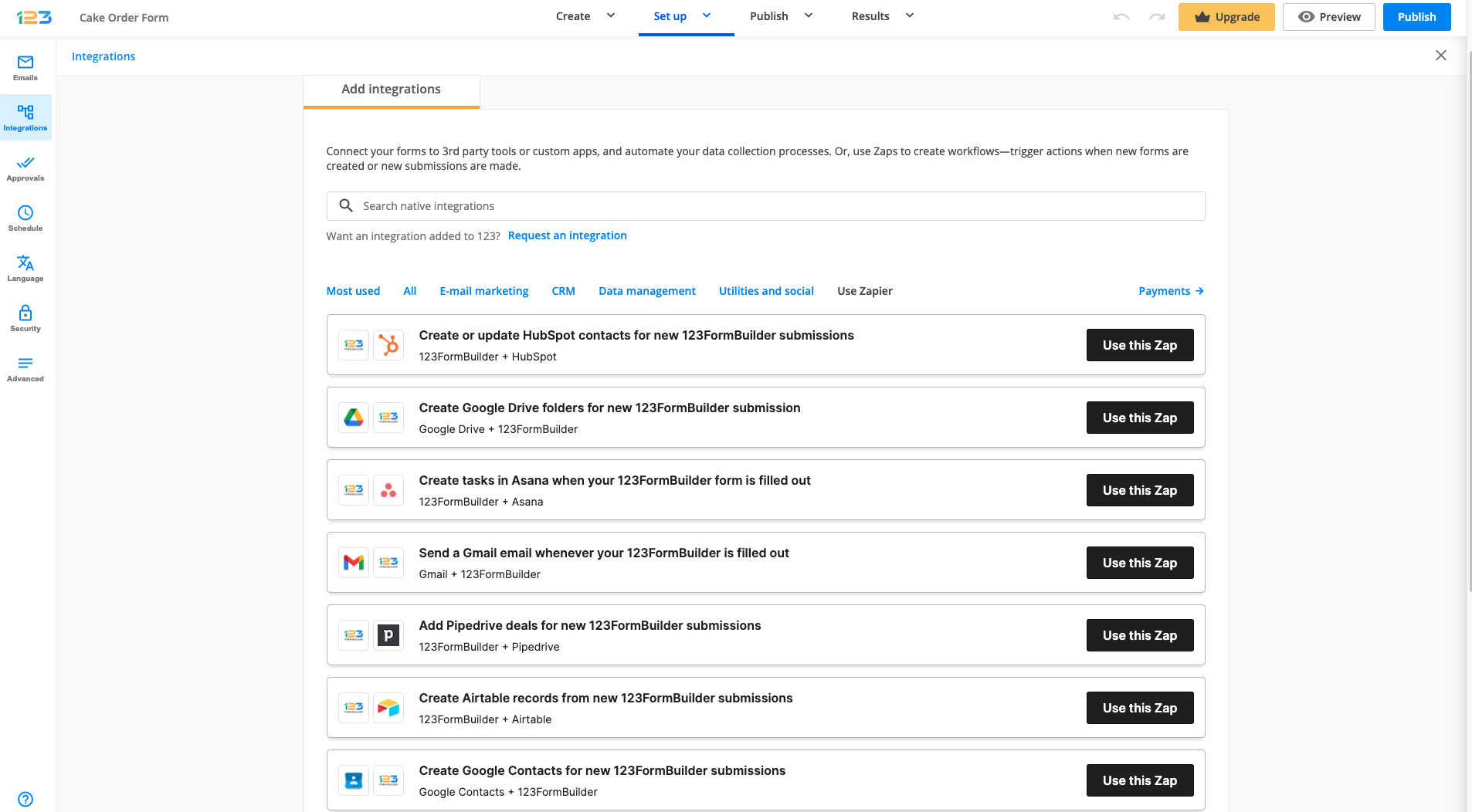
You can link your form to various applications: Google Docs, Google Groups, SalesForce, WebHook, Yahoo Groups or MailChimp. To add an application, select it from the list, press Add and specify your application data in the box that appears on your page. To disable an application, uncheck the Enable box. To completely remove an application, press Remove.
Google Docs
Google Docs integration allows you to send form submissions to spreadsheets. All submissions for one form will appear in the same spreadsheet. Type in your Google Docs ID and password and press
Save.When you check your Google Docs account after submissions were made, you will see that you’ve got a new spreadsheet with the name of your form showing each submission’s input on one row.Google Docs integration works very well with
event registration forms and
online surveys, when you need to share form entries quickly with other interested parties.
Google Groups
Enabling the Google Groups application will automatically add your submitters’ emails to your Google Group. Type the name of your group and click Visit to make sure it’s the right one. Then select, in the dropdown list, the form field which contains your submitters’ email addresses and press Save.
SalesForce
Adding SalesForce to your form will import email addresses and leads from your submitters to your SalesForce account. Type in your SalesForce email address, password and authentication token. The SalesForce authentication token needs to be retrieved from your SalesForce account. Read
here the instructions on how to do it. Then select, in the
Create Object dropdown,
Lead or
Contact, according to the type of object you want to create.
Click on the
Customize button to specify how user input should be managed. For example, in the
Company dropdown, choose the form field where users specify what company they represent. This way, the company name will be placed in the corresponding SalesForce lead or contact field. Press
Save, then
Saveagain in the main SalesForce box and the application is enabled.Also, you can add an
opt-in checkbox to your form. Before having their contact data sent to your SalesForce account, form users will be asked for confirmation.
WebHook
WebHook will send all submitted form data to a custom script located on your server. Type in the URL where your script is hosted and manage user input in any way you wish.
Yahoo Groups integration will automatically add your submitters’ emails to your Yahoo Group. Type in the name of your Yahoo Group and press Visit to open it in another tab. Choose, in the Email Field dropdown, the form field that should contain your visitors’ email addresses.
MailChimp
By integrating MailChimp with your form, you will import email and leads from your submitters to your MailChimp lists. Provide your MailChimp API Key and choose the list to which you want to add new contacts in the Use List dropdown.
Click on Customize and specify which form fields contain the visitor’s email address, first name and last name. Visitor’s data will be imported to your MailChimp lists accordingly.
You can also add a mailing list
opt-in checkbox to your form. Before having their email addresses sent to your MailChimp mailing lists, form users will be asked for confirmation.
VerticalResponse
VerticalResponse integration allows you to send data submitted by form visitors to your VerticalResponse lists. Before setting up the integration,
contact VerticalResponse and ask them to enable API access for your account.
Then, go to Settings -> Applications, select VerticalResponse in the dropdown list and press Add. Type your VerticalResponse login data in the provided fields and press Save to enable the application. In the Use list dropdown, select the VR list to which you want to send leads. Press Customize to establish field associations.
In the customization lightbox, on the left side, you’ve got the list of available VerticalResponse fields. Match them with 123ContactForm fields, by selecting the corresponding form fields in the dropdown lists on the right side. Press
Saveat the end. You can add a mailing list
opt-in checkbox to your form. Before having their contact data sent to your VerticalResponse account, form users will be asked for confirmation.
Twitter
Twitter integration generates a tweet from your Twitter account for every new entry your web form receives. To enable the Twitter application, go to Settings -> Applications, select Twitter in the dropdown list and press Add. Click on Connect to Twitter.
You’ll be redirected to a page where you need to provide your Twitter username and password. Press Sign in. On this page, you can also read about what the 123ContactForm application will or will not be able to do with respect to your Twitter account.
You can now customize the text that tweets will contain. By default, the message is [%Name%] has just registered on {{FormName}}. In the actual tweets, {{FormName}} will be replaced with the name of your form. [%Name%] refers to the Name form field and will be replaced with the input provided by form visitors in that field. All of your form fields can be used in the same way.
For example:
- to reach the form field labeled Website, you will need this code: [%Website%]
- to get users’ input for a field named Favorite browser, type [%Favorite browser%]
Inlude these codes in the text customization box and your Twitter messages will pick up the input provided by your form visitors in those fields.

Keep in mind that visitors’ input will be included in your tweets according to your specifications. What they type within form fields will be contained in the messages tweeted from your Twitter account.
iContact
iContact integration allows you to send form visitors’ information to your iContact lists automatically. At every submission, you’ll have a new contact added to one of your lists. Go to
Settings ->
Applications, choose
iContact and press
Add. Provide your iContact username and password and press
Save. Then choose the iContact list to which you want to add contacts.
Next, you need to create form fields assocations, to establish what piece of information goes where. Press Customize to open the customization lightbox. On the left side, you’ve got the available iContact fields. The dropdown lists on the right side contain the fields within your form. Specify what information will be sent to your list for each field. For instance, for the first iContact field – Email – select your Email form field. For the second one – Last Name – select Name – Last and so on.
See how to add an
opt-in checkbox to your form. Before having their contact data sent to your iContact account, form users will be asked for confirmation.
Top Producer
Using the integration with Top Producer, real estate’s most intuitive CRM, you can send all the contact information provided by users when filling out your forms to your Top Producer account. Go to Settings -> Applications, choose Top Producer and press Add. 123ContactForm generates a username and a passoword that you will need when setting up the integration on the Top Producer side.
In your Top Producer account, in the Settings section, click on Contacts → Lead Setup → Add Lead Provider. Select 123ContactForm in the Lead provider name dropdown and the URL box will be completed automatically. Paste the username generated by 123ContactForm, type in and confirm the password, select the person who is supposed to receive the leads and press Add Lead Provider.
That sums up the settings needed on the Top Producer side. Return to the 123ContactForm
Settings section.
Click on Customize and match the Top Producer fields (on the left) with the 123ContactForm fields (on the right). The Email, First Name and Last Name fields are required; all the rest are optional.
Contact information will be sent from your web form to your Top Producer account according to the associations you set up here between fields.
How to add a mailing list opt-in checkbox to my form?
After you’ve integrated your form with SalesForce, MailChimp, VerticalResponse or iContact, you can add an opt-in checkbox to your form. Like this, form users will be requested to tick the checkbox in order to be added to your mailing list and the bounce rate of your mailing list will drop.
In your Form Editor, drag a checkbox field to the main view. In its Edit panel on the left side of the screen, delete Choice 2 and Choice 3 and replace Choice 1 with the message you want form user to see (e.g.: Add me to your mailing list). Remove the field label and your checkbox is ready to find some functionality.
Go to your Settings -> Applications section. In the application box, in the dropdown list labeled Send, select Only if choice is checked: (opt-in message). Press Save.
What is the SalesForce Authentication Token and how to reset it?
Your SalesForce account has an associated Authentication Token. This is a key that changes when you change your password. In order to integrate your 123ContactForm account with SalesForce, you will need to use the Authentication Token. When setting up the integration in Settings → Applications, paste the token on the third line of the SalesForce application box.
To reset or enable your SalesForce Authentication Token, follow these instructions: 1. In your SalesForce account, click on Settings (top-right corner). 2. Go to My Personal Settings and click on Reset Security Token. 3. Follow the indications provided there by SalesForce to receive your new Authentication Token by email.
My form – Twitter integration does not work. How to fix it?
Especially if you see the message Returned error message: Status is a duplicate, it means that the custom message set to be twitted from your account does not contain an element that would make tweets distinct. This element must be present. Add one of the codes listed in the Twitter integration customization lightbox, e.g. [%Name%]. Make sure that it is typed in correctly (copy it from the list).
For the integration with Twitter, I get an error message saying Status is a duplicate. What to do?
When your Twitter integration returns this error, it means that the custom message set to be tweeted from your account when somebody fills out your form does not contain elements that would differentiate tweets from one another. Go to your Settings → Applications section and customize the message found in the Twitter box. Use one of the codes listed below the box, such as [%Name%], in order for the Twitter message to change with every new form submission.
Pingback: Top Producer: Collect real estate leads through your web forms | 123ContactForm Blog
Pingback: Free Online Form Builder | Smashing Forms