
123FormBuilder Knowledge Base
Search our documentation platform for answers, service specifications and 3rd-party integrations.
Styling your 123FormBuilder web forms with custom themes
In the Design section of the form builder, you can manage your form themes. Choose a predefined theme for your form, customize one, or start building a form theme from scratch.
Keep in mind that our default form themes can’t be removed. After you’ve edited or created a theme, click the Save current theme button. Give a name to your theme so you can easily find it afterward.
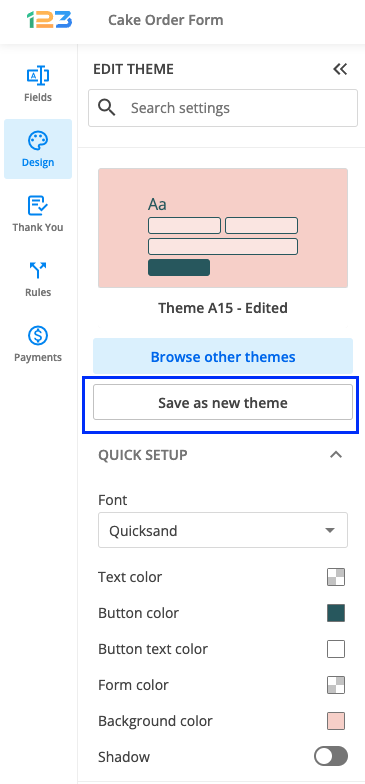
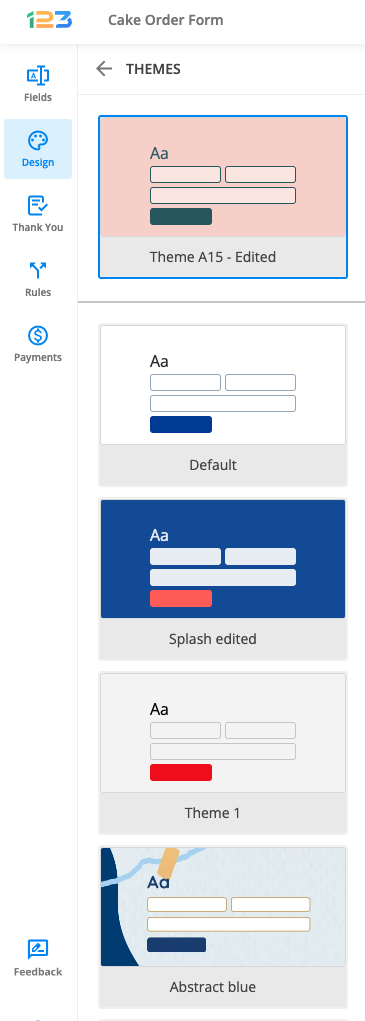
Your theme list can be accessed by clicking on Browse other themes button from Design section.. To add a theme to your form, hover over the desired theme, select the three vertical dots and click on Apply to form.
The Add Custom CSS Editor allows you to further customize the appearance of your theme. Add as many CSS attributes as you need to our form IDs and classes using our CSS form generator. Furthermore, you can check out our CSS Tricks section for ideas on how to improve the design of your forms.

Explore all the options available in the customization panel. You’ll find the customization options listed under each subsection (Quick setup, Layout, Background, Fields, Buttons).
Learn more about our customization features on our Form Designer page.
Related articles
Similar Articles
Frequently Asked Questions
Here is a list of the most frequently asked questions. For more FAQs, please browse through the FAQs page.
3 comments