Form Editor
- Does the form editor have real-time preview?
- Do you offer form validation?
- Characters are not displayed properly in my form and submission emails. What to do?
- Can my visitors upload files using my contact form?
- I don’t receive uploaded files as attachments, but as download links. Why?
- How to delete a field?
- How to adjust form width?
- How to change the name of my form?
- What are compact forms and how to use them?
- Can I use images as options in a radio buttons list?
- Can I set a default value for a choice form field?
- How can I place labels on top of fields?
- How to remove the Submit button?
- How can I hide the Calculate button?
- How can I replace the subfield named Region with State?
- I set a smaller form width. Why is there no change?
- Why can’t I use the File Upload field?
- How to edit the Submit button?
- How to add a Reset button to the form?
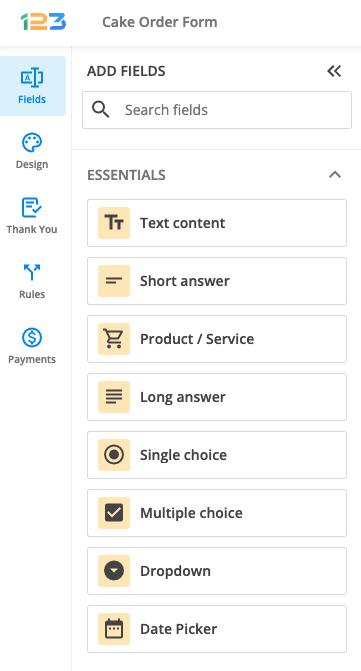
You can add and edit basic and advanced fields, drag and drop sections, adjust the form layout and preview the result in real time.
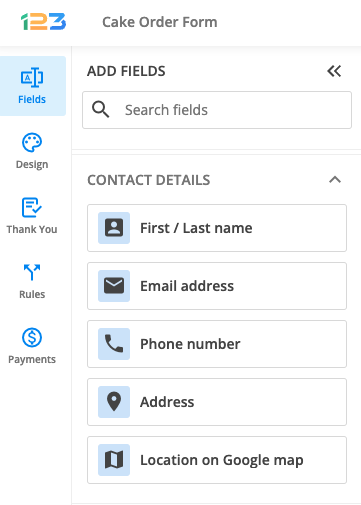
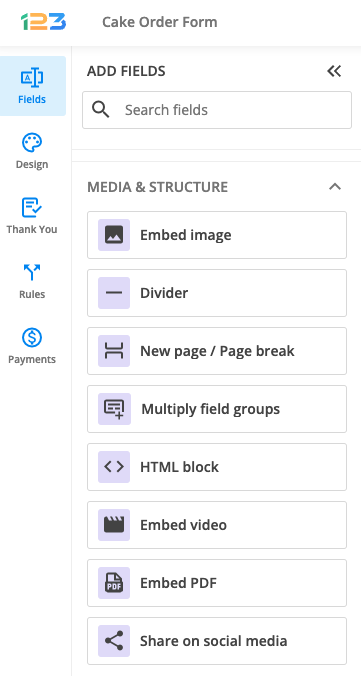
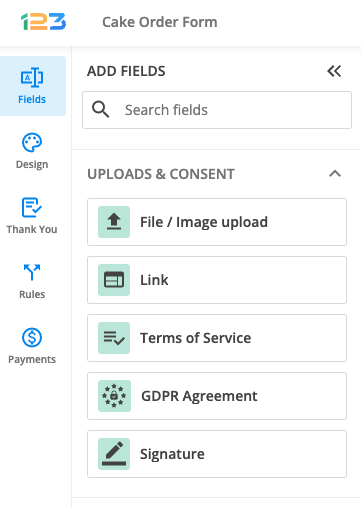
The fields panel is placed on the left side of your page, split into Basic and Advanced.
- type in the Label text box the title of your text box
- select in the Label Style dropdown the title style: normal, bold or italic
- specify the box width using the Field Size option (it indicates the number of columns – or characters – within the box)
- choose, in the Field Validation dropdown, the input type you will accept for this field: for example, alphanumeric (letters and numbers), email (an email address), URL (a webpage)
- check the Required box if the field must not be left blank (a red asterisk will indicate that the field is required)
- add field Instructions if you want to provide additional information regarding the text box; instructions will appear right below the field label
- type the text area title in the Label text box
- choose the Label Style (normal, bold, italic)
- set the Field Size (number of columns)
- set the number of Rows (lines)
- check the Required box to make sure that visitors complete the field
- add Instructions to give indications
- indicate, in the Label text box, the information you are intereseted in
- type in the Available Choices box the options visitors have got (one per line)
- quick tip: if you want to leave the first line blank, type in [space] and press Enter – this way, no choice will show until your visitor opens the dropdown list
- the Import link will take you to a lightbox from where you can import lists of days, months, years, continents, US States etc.
- preselect a value in the Default Choice section
- type in the Available Choices box the options visitors will choose from
- import lists of days, months, years, continents, states by clicking on the Import link
- in the Field Layout dropdown, choose whether your radio buttons will show on one, two or three columns or side by side
- tick the Accept Other Values box to allow visitors to enter an option of their own
- preselect a value in the Default Choice section
- type in the Available Choices box, line by line, the available options
- import common lists (days, months, years, continents, states) using the Import link
- set up the Layout Field by indicating whether the options will be structured in one, two or three columns or side by side
- tick Accept Other Values if visitors may type in a different option than the listed ones
Replace the text in the Label box with your desired heading and choose its Style: bold, normal or italic.
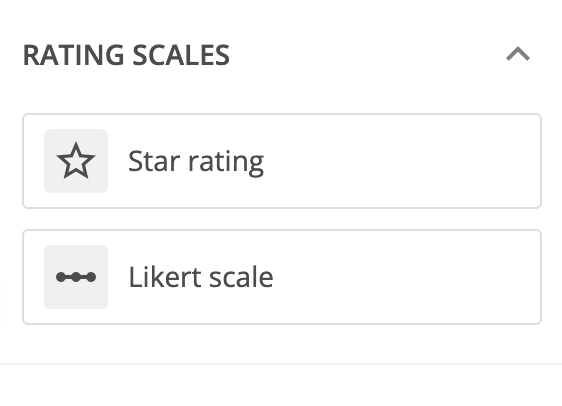
h) Likert Scales. Likert scales are elegant ways of eliciting your visitors’ opinions (from most to least favorable). Visitors will check one of the five (or more) options available for each statement.
- choose, in the lightbox that appears after you have clicked on the Likert Scale button, the number of statements that you want to create and the scale type: degrees of agreement, importance, probability, satisfaction or quality (or create a scale of your own)
- press Create and statements will then be added to your form; click on a statement and customize it in the panel that appears on the left side
- insert the statement text in the Label box and choose a Label Style (normal, bold, italic)
- check the Required box to make sure visitors state their opinions and type in any necessary instructions
- adjust your scale by using the Customize Likert Scale link at the panel top; create new degrees or import predefined ones
- add another statement by using the Insert New Statement link at the panel top; when you press it, an untitled statement will be added below the already existing ones
- specify a field title in the Label text box and choose the Label Style
- specify, in the Field Size box, the length accepted for your visitors’ email addresses
- make sure the Field Validation dropdown is set on the email option; this way, the user input will have to meet the particularities of an email address (name@domain.com)
- check the Required box if email input is mandatory and, if you want to be more specific, add Instructions (e.g. Please type in your personal address; Please type in your company address)
For fields with a specific type of validation, visitors will get an error message if they provide other types of values than the indicated ones.
- specify a field Label and choose the Label Style
- set the accepted length of the URL in the Field Size box
- make sure the Field Validation dropdown is set on the URL (webpage) option – visitors will only be allowed to enter URLs
- according to your preferences, check the Required box and add fill-in Instructions
- label and style the field
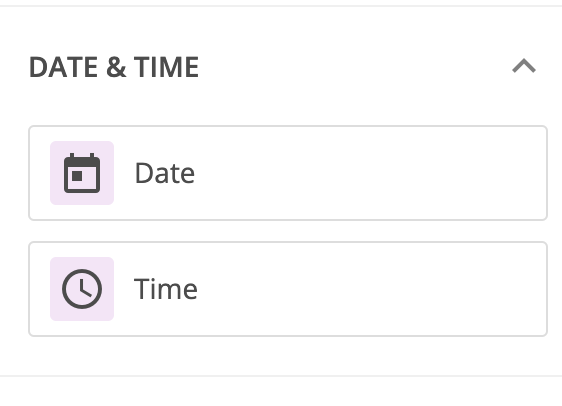
- use the Required box to make sure visitors specify a date and add, if necessary, Instructions
- choose the Date Format – either mm/dd/yyyy or dd/mm/yyyy
- when filling in the date, visitors may type it or click on the icon that appears next to the field; this will open a calendar that allows going through days, months and years
Time fields work very well with Event Registration Forms (asking for guests’ expected time of arrival), with Order Forms (asking for preferred delivery time interval) or even with Surveys (asking for opinions concerning working hours).
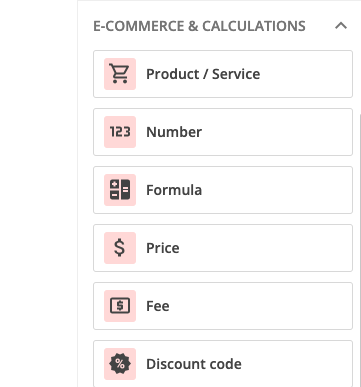
- after labeling and styling the field, choose your desired Currency (dollars, euros, pounds and many other options)
- you may use the Hide price decimals checkbox to ask for a round price
i) HTML Blocks. HTML blocks may be used for inserting customized text sections, images and tables.
- click on the Edit HTML Block link to open the customization lightbox
- type in text and use the following customization options: font type and size, font style (bold, italic, underlined), foreground and background color, text alignment (left, right, center, justified)
- insert ordered or unordered lists, apply text indentation and use sub- or superscription
- when inserting tables, specify the number of rows and columns, the table width, padding and background color, the border size, style and color and the type of alignment; then, insert text or images into the table cells
- when inserting an image, paste its URL in the customization box, type in an alternate text (the text that will show if the image is unavailable at a certain moment), then adjust the image layout: width, height, border, alignment and the horizontal and vertical space covered by the image section; finally, press Submit
- when inserting hyperlinks, paste the URL, choose a target (_blank to open the link in a new tab, _self to open the link in the same frame, _parent to open it in the same frameset, _top to open it as a new page that fills the entire window)
- Style, Class and Name are HTML/CSS fields in which you may introduce code lines
- insert horizontal rules by using the last customization option in the HTML block lightbox
- label and style the field, then add any necessary instructions
- the supported file types for upload are: .gif, .jpg, .jpeg, .txt, .pdf, .doc, .zip, .rar, .png, .dwg, .tiff, .dxf, .stf, .bmp, .psd, .eps, .ai, .mp3, .mpeg4, .docx, .xlsx, .xls, .rtf, .odt, .ott, .ppt, .ppsx, .pptx, .pps, .wmv, .avi, .flv, .mov, .3gp
- if the total size of the uploaded files exceeds 5MB, instead of being sent as attachments, they will be sent as direct download links
Google Maps are highly useful and appealing when used with event registration forms.
l) Images. You can use images to personalize your form. Click on the Customize Image link and specify the image URL or upload an image from your computer. Use the Align dropdown to position your image: left, right or center.
m) Social Buttons. By adding Social Buttons to your forms, you’ll make it very easy for your form visitors to recommend your form on Facebook, Google+, Twitter and LinkedIn. After you’ve added the Social Buttons field to your form, click on it in the main view of your editor to open the Edit panel.
Place the social icons to the left or right side of your form by selecting your preferred option in the Align dropdown list. Select, in the Buttons section, the social network icons that you want displayed within your form. If the Show count option is ticked, then the number of likes, +1′s, tweets and LinkedIn recommendations gathered by your form will be shown right next to the social buttons. Untick the option if you don’t want these counts to be public.
- alpha – only letters
- alphanumeric – letters and digits
- alphaspace – letters and white spaces
- alphanumericspace – letters, digits and white spaces
- numeric – only digits
- numericplus – digits and the characters +, -, .
- email – email addresses
- URL (webpage) – webpage URLs (e.g. http://123contactform.com/docs/)
- date – YYYYMMDD – date as year/month/day
- date – DDMMYYYY – date as day/month/year
- date – MMDDYYYY – date as month/day year
- date – MMDDYYYY + picker – date as month/day/year and a calendar in which users can pick the date instead of typing it in
- date – DDMMYYYY + picker – date as day/month/year and a calendar in which users can pick the date instead of typing it in
- date – MMYYYY – date as month/year
- time – time coordinates (hours and minutes)
- custom
With custom validation, you can define your own validation code. Choose Custom in the validation dropdown list and type your code in the box that shows up. The code will have a format such as CCCCNNAAAAAANN. The code letters that you may use are:
- C – character (letter)
- N – numeric (digit)
- A – alphanumeric (letter or digit)
- L – lowercase letter
- U – uppercase letter
- S – white space
If your form requires even more complex field validation, contact us and we’ll help you get it done.
In your form editor, click on the Form Layout section at page top to unfold the panel.
This feature can be used for the following form fields: Text Box, Text Area, Number, Email or Website.
After adding a field to your form, click on it in the main view to open the Edit panel. In the Options section, check the Compact Field box.


Pingback: Free Online Survey Template Collection | Facebook Surveys Blog
Pingback: Online Market Research Survey | Facebook Surveys Blog